New pattern: Batcombe Hat

Thank you all for the kind, kind comments on yesterday's post. I wasn't really expecting that, so it made me smile all day long. Thank you! Onwards...

I'm continuing in the theme of Somerset villages for the names of my updated patterns. Today's offering is called Batcombe, which I chose, because a hat with two balls, clearly needs to be BATcombe... Well it made me giggle anyway! :)

This is another hat which would be perfect for a Christmas gift (although you'd have to prise this one out of my cold dead hands, I love it so much!).

Jim and I had great fun on Saturday morning, taking photos out in the fields behind our house. Well I had fun anyway - I was thoroughly silly! And Jim... well, he blogged about being a photographer over on his pages: Snapper for Hire.

Pompoms seem to be undergoing something of a renaissance, and have been the subject of a great deal of twittering of late, so it seemed only right that this should be the next pattern to get the once over and release!

Batcombe Hat1

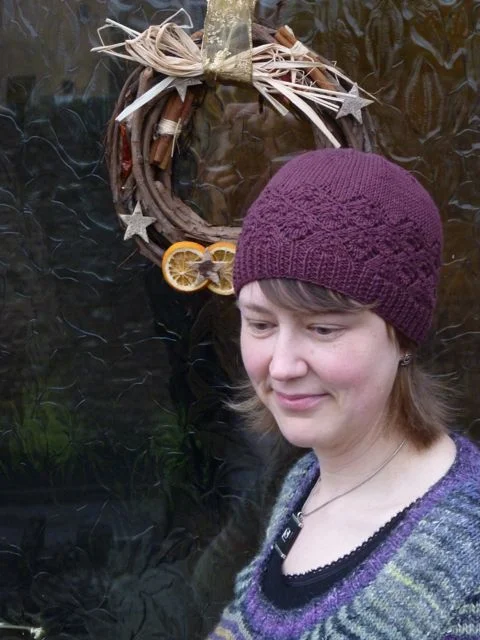
(This is a slightly more sensible pose...) The Batcombe Hat is knitted in a long rectangle, and then seamed up each side. This makes it a brilliant new-knitter project, or just a fun pattern to make at knitting night, or in front of a good film. Wearing it just makes me smile! How can you not smile when you have a pair of pompoms on your head?!

There are just two cables to master, and the pdf pattern includes a link to a good cable tutorial if you've not tried cables before. There's also a link to a pompom tutorial, on the off-chance that you've forgotten how to make them the old-fashioned way. You could of course equally use a spangly new pompom maker.

I've done both a chart and written pattern for the cable, so both sides of that debate are fully catered for. It's not a complex cable, but I really liked the effect on the finished fabric.

My sample was made using Laughing Yaffle's Fledgling Sock yarn, which is a lovely 4ply yarn made from a blend of alpaca, merino and nylon. Alison hand-dyes the yarn in small batches, so availability is variable. It's worth looking out for an update, but if you want to get going straight away, you could easily use an alternative 4ply yarn - just pick one with reasonably good stitch definition, so not too much fluff! You want to be able to see the cables once you've worked them.

Shetland Heritage Pattern Release

Well it's all go around here at the moment! Kate's book (Colours of Shetland) is now on sale (scroll to the bottom of this post to purchase a copy), and at some point next week, I shall tell you all about how much I enjoyed working on it! But today I'm delighted to share with you some work that I did over the summer...

Jamieson & Smith approached me earlier in the year to work with them on some patterns for their new Shetland Heritage yarn. I blogged about how much I liked the new yarn when it first went on sale, but now I'm delighted to be able to show you one of the patterns I've written for it.

© Jamieson & Smith

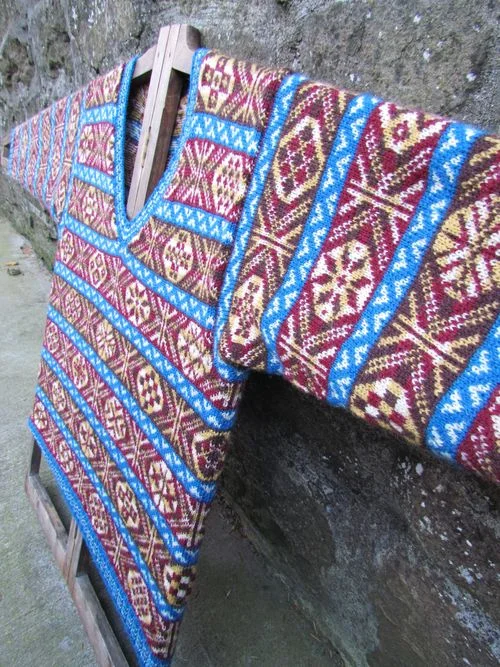
This is the Fair Isle V-Necked Jumper (it is not my own design!). I was asked to study some garments held in the collection of the Shetland Museum and Archives, and to create knitting patterns for them. So the design is the work of the unnamed knitter who created the original pieces. I've not changed the colourway, or the construction; I've just tried to recreate the design as closely as possible. This is thought to be a fashionable men's jumper from the early 1920s (rather than a fisherman's jumper).

While we were in Lerwick in July, I spent a day happily transcribing the patterns, and Jim even joined me to help out in the afternoon! There was such detail in the original pieces!

Shetland Museum & Archives1

The V-Necked Fair Isle jumper from which this pattern comes wasn't in the best condition. It had been worn and loved to pieces! Above you can see what remained of the sleeves.

Shetland Museum & Archives11

Even the body had been cut into pieces! In fact, when it was first laid out in front of me, it had appeared to be a cardigan...

Shetland Museum & Archives4

It wasn't until we laid the piece flat that it was clear that actually it was a jumper that had been cut open up the side seam.

Then began the meticulous task of transcribing the stitch patterns. The motifs appear in a fairly random arrangement, with many of them being knitted "incorrectly" in the lower portions of the body, and later repeated with the mistakes ironed out. Jim noticed that in the band of patterns where the neck split occurs, new motifs are introduced, and the gauge changed somewhat. So we speculated that perhaps more than one person was involved in making this sweater? Or perhaps it was put to one side for a while, and the knitter returned to it having improved their skills on other projects. It was fascinating how much you could guess from just looking at the remains of a jumper!

It was quite a task to decide how best to recreate the design - I took the rib pattern from the cuff fragment and used it at the welt, neck and sleeve cuffs, since the original garment had just a few rows of two-colour stocking stitch and it was curling badly.

In the interests of keeping the pattern to a manageable number of pages I felt it was best to repeat the design on front and back, so the arrangement of OXO motifs that you see on the front in the picture above is repeated on the back. I have tried to keep the feel of a sampler piece however, and resisted the temptation to cut down the number of different O designs. If you wanted to, you could easily adjust the pattern to use just one or two designs, or go the whole way and mix them up with your own patterns, making each one different!

The jumper has been sized to fit chests from 32 to 48 inches (81-122cm), and is only available as a kit directly from Jamieson & Smith: V-Necked Fair Isle Jumper

IMG_1617
© Jamieson & Smith

I'm immensely grateful to Dr Carol Christiansen at the Shetland Museum & Archives for her assistance, as well as to Grace Williamson who did an amazing job of knitting up this jumper. Thank you both!

New pattern: Penselwood Hat

If you're short of ideas for a quick gift knit then this hat could be just what you're after! I've got the rights back to many of the designs I originally did for Simply Knitting and The Knitter, so I'm working through and getting them ready for release as single pattern downloads.

I've renamed this beanie Penselwood, after a pretty village not far from here. This hat is knitted back and forth, with an interesting lace pattern at the start, ending with a plain stocking stitch top. The decreases form a satisfying spiral and before you know it, you'll be sewing up the seam and wrapping up the finished hat for a friend.

Penselwood Hat

I chose Louisa Harding's Ianthe yarn for this design, although any smooth DK yarn would work brilliantly I'm sure. Ianthe is a lovely blend of 50% merino and 50% cotton, and I really enjoyed knitting with it.

Lacy Hat3

The lace pattern features a clever wrap stitch pattern that's really simple to work, but looks lovely. Full instructions are included in the pattern download, and the lace pattern is given in both written and charted formats.

Coronation Knits: The Short Row Files

Today's post follows quite nicely from the theme of Thursday's post: 'things I learnt from technical editing jobs'. I'm delighted to be taking part in the blog tour for one of latest projects I've worked on, Coronation Knits by Susan Crawford. Susan has kindly offered a copy of Coronation Knits as a prize to one lucky reader, so read to the end for details of how to enter the giveaway.

There are going to be lots of posts about the beautiful designs in the collection, and the influences behind them, so today I thought I would take the opportunity to talk a bit about short rows. Bear with me. If you've not yet come across short rows, fear not, I shall walk you through them. Short rows are exactly what the name suggests - rows (or rounds) where you don't knit all of the stitches. If you work half way through a row, turn and work back to the end, and then carry on as normal, you will have slightly more fabric on one side of your piece. You will also have an unsightly hole at the point where you turned. Short-row shaping is actually very simple - it lets you add more fabric in specific areas and thus can create 3-dimensional shape in your knitting. The trick involves closing up the holes that form when you turn.

© Susan Crawford, 2012

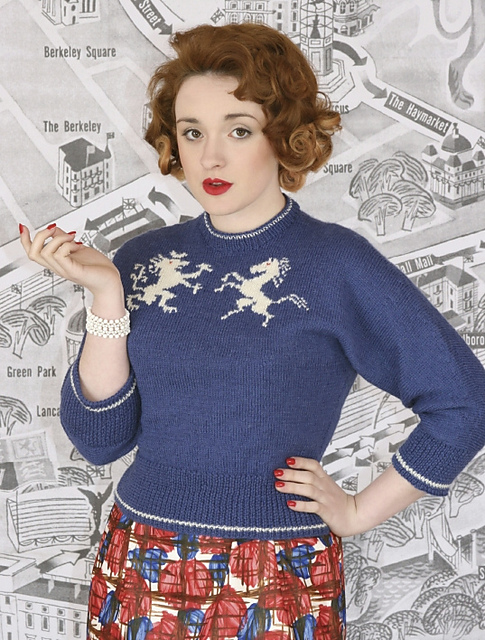
There are three designs in the book that feature short-row shaping: Lion and Unicorn (above), Blue Riband Hat and Retro Jubilee Socks (those are all Ravelry links).

The Lion and Unicorn jumper was my first love in the collection - it was the first design we worked on, and the elegance of its shape and design really appeals to me. The pattern is based on a design from the Special Coronation Edition of Stitchcraft magazine (1953), where the jumper is knitted in two pieces (front and back). The shoulders were shaped with a long series of cast-off rows, thus giving the original design a seam along the top of the shoulder and sleeves. When Susan started looking at updating the jumper (and adding all the additional sizes - the original is 1 size only), she decided that it would work really well knitted in one piece from front to back, with the shoulders shaped instead by short-rows, thus eliminating the seam. Susan isn't a designer who gets rid of seams willy-nilly - in fact, she's a great proponent of the benefit of seams to provide structure and good fit in garments - so when Susan gets rid of a seam, you know that there's an excellent reason for it! The smooth slope of the shoulders and sleeves is just so pleasing - a seam would really mess up that line in my humble opinion.

Lion and Unicorn uses probably the most common short-row turn method: wrap and turn (w&t). There are lots of tutorials for working wrap and turn short rows, so here are a couple to get you started:

Working the wrap and turn itself (a video from Knitting Help)
Knitting the wrap with a stitch (another video from Knitting Help)
Working the wrap and turn and knitting them together on following rows (a photo tutorial from Purl Bee)

© Susan Crawford, 2012

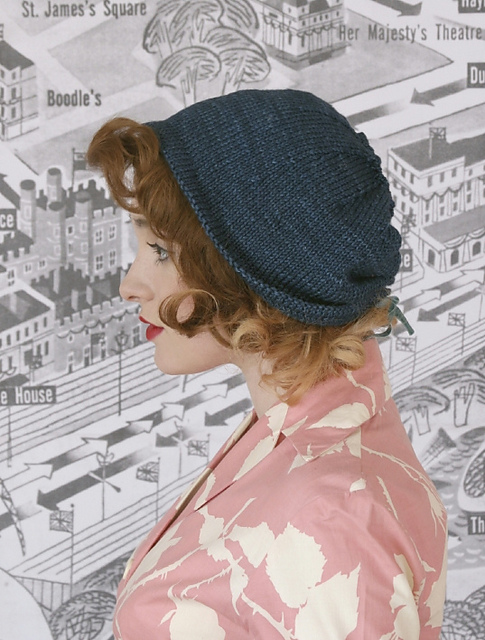
The stylish cloche hat, Blue Riband (above) also uses the wrap and turn technique - this time working in the round. Short-row shaping is used here to add extra length to the back portion of the hat (this same method is often used to add height to the back neck for yoked jumpers). The basic premise is exactly the same as above, it's just that you are working in the round, rather than flat. If you are finding that your wraps aren't completely concealed when you work back over them, try knitting the wrap and stitch together through the back loop.

Which brings us nicely to the Retro Jubilee Socks and the new thing I learnt. These socks feature a new-to-me technique for working the short rows in the heel - the slyo or slipped yarnover method. A quick search on Google revealed only a few references to this technique, and no proper tutorials (although I feel sure there must be some out there somewhere - do leave a link in the comments if you find one and I'll add it here), so I thought it might be handy to walk you through it.

© Susan Crawford

The cuff and leg of these socks are knitted in the round as normal, and in essence the heel is a standard short-row heel, it just uses a different method for closing the holes on turning. The following short video takes you through the process.

Tutorial for the slyo (slipped yarnover) heel turn used in the Retro Jubilee Socks by Susan Crawford. These are part of the Coronation Knits collection.

The next stop on the blog tour is Hélène Magnússon (The Icelandic Knitter) on Monday 18th June 2012. Make sure to stop by!

If you can't wait to get your hands on a copy of Coronation Knits you can purchase the collection in the following ways:

Print Book for £12.99 or eBook for £10 both available from Susan Crawford.

Susan has kindly donated a copy of Coronation Knits for one lucky reader (there are giveaways on many of the stops on this blog tour, so do check them all out - full details below). To enter the competition, please leave a comment on this blog post, and tell me what your favourite knitting technique is and why (comments not including this information will be excluded from the selection of the winner). One reader will then be chosen at random from the eligible comments on this post. The prize can be sent anywhere in the world. Only one entry per person please - duplicate entries will be deleted. Comments will close automatically exactly 1 week from publication of this post. All prizes will be sent out after the blog tour is complete at the end of July 2012.

Learning from designs: Weave Stitch Pattern

One of the perks of working as a technical editor is getting to see a range of patterns from a wide range of designers. I learn something new all the time, and I'm a complete learning junkie, so I love it! On Saturday I will be blogging as part of Susan Crawford's Coronation Knits blog tour, and I'll be sharing some of the things I learnt from working with her.

I particularly enjoy technical editing designs by Nick Atkinson. He has worked as a knitwear designer for many of the biggest fashion houses - Donna Karan, Gucci and Pringle, to name just a few! What I enjoy most about his designs is the way that he manipulates stitches. He's not "hampered" by a background in traditional written knitting patterns - he just picks up needles and yarn and sees what happens.

I had the pleasure of editing his Deauville design for Issue 45 of The Knitter, which features an unusual woven effect stitch pattern. It's very simple to work, but a couple of readers had been getting confused with how to do the crossing rows, so we decided that a video was the best way to explain. If you would like to get your hands on a copy of this design, then back issues of The Knitter can be purchased as a digital edition from Zinio or the Apple Newsstand.

Do watch the video, even if you don't want to knit this design - it is a REALLY clever stitch pattern. Simple, but super-effective - my favourite combination!

Tutorial for the Weave Stitch patter used in the Deauville jumper by Nick Atkinson. This jumper can be found in The Knitter, issue 45.

Many thanks to Jim for his wicked filming skillz!

See you on Saturday for Coronation Knits and more new things...

Drawing knitwear schematics in Illustrator: Part 3

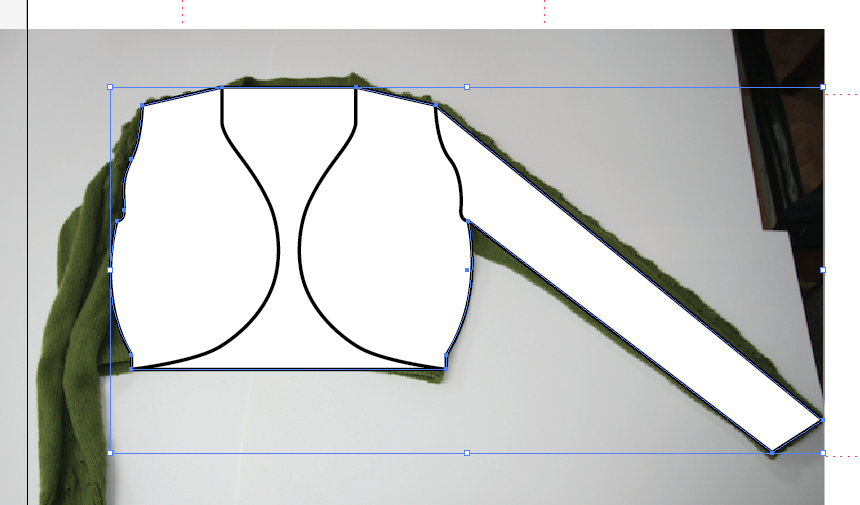
Today's post covers refining your outline shape - adding curves and details - as well as adding measurements and aligning. This completes the series on using Illustrator to draw knitwear schematics. The first two posts in this series covered setting up preferences and layers in Illustrator, and drawing basic outline shapes

This is the basic angular outline shape for our schematic. It is the schematic for the Droplet Bolero from A Stitch in Time 2 (which should be landing on my doormat some time today or tomorrow - squeal!).

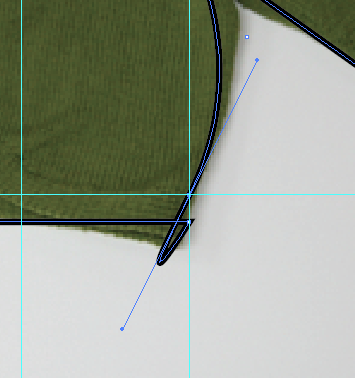
In order to add curves to the shape, we will convert some of the anchor points. So for example, at the bottom right of the diagram, we want to introduce a curve after the welt. Select the outline using the black Selection Tool, and then choose the Convert Anchor Point tool. This will be found underneath the Add Anchor Point tool that you used earlier (click and hold on the fountain pen icon to see the other options).

Convert anchor point tool.png

You then click on the point where you want to introduce a curve, and drag a handle out a little way from the point. Don't be alarmed when your lines look like they have "gone wrong", this is normal.

Curves are added using a Bézier tool. This is particularly brilliant, because it means that your image can be scaled as large as you wish, without pixellating. The curve is controlled at each side of the anchor point, using the two handles (shown with small blue circles in the image above).

Get a feel for how the handles control the curve by using the white Direct Selection Tool to move the handles round. Try moving them further away from the anchor point, following the same direction, and see how this changes the curve.

We only want a curve on the upper side of the anchor point, so we will first of all remove the handle on the lower side. You do this by simply picking up that lower handle, using the white Direct Selection arrow, and drag the handle back onto the anchor point. You should "feel" it snap away. Drop it there, and you will now only have a handle (and thus a curve) on the upper side of the point.

Adjust the remaining handle until you are happy with the shape of the outline. Repeat this process at all the points where you require curves. You can use guides as before to ensure that the curves are the same on both sides of the outline. Just snap the handles to guide points.

 Now that the outline is complete, lock the outline layer, and unlock the detail on outline layer.

Add lines to your drawing to show details such as front openings, armhole shape, pockets etc... Use the Line Segment Tool, and set the stroke properties in the same way that you did for the outline shape.

Convert anchor points to add curves to the detail lines as you wish.

If you want to add two elements that look identical, but are mirror images of each other, then you can use the reflect tool.

Select the item you wish to reflect, using the black Selection Tool. Then go into the Object menu and choose Transform... From the submenu, you can then pick Reflect...

Choose whether you want to reflect it horizontally or vertically, and then rather than hitting OK, choose copy. This creates another object, rather than transforming the selected object.

Then simply move the new front edge line into place, using the arrow keys.

Add any other details, that you require, to the outline drawing. Then lock the detail on outline layer and unlock the outline layer. 

Select the outline shape and making sure that the fill toggle is to the front, add a white fill to the basic shape.

If you are happy with the shape, then lock the outline layer and unlock the scan layer. You can now delete the photograph out of your file. Then relock the scan layer, and unlock the measurements layer, as it's time to add some arrows to the diagram.

Arrows are added very simply as lines using the line segment tool. If you hold down shift while drawing the line, it will automatically be either horizontal, vertical or on a 45 degree angle.

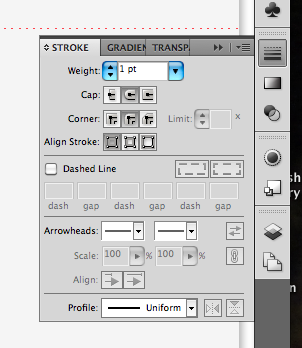
Once you have added the line, you can use the Stroke palette to choose its properties - thickness, shape of arrowheads and so on.

At this point it may be helpful to make the guides visible again (select Show Guides from the View menu, and Guides submenu). Be sure to use the white direct selection arrow to change the length or position of the ends of your arrows, or you will stretch them, thus making the lines different thicknesses.

Unlock the text layer, and use the Type Tool to start a text box. Simply type your measurements into the box, then choose the font and size from the Character palette.

To make your text align nicely with the arrows, you will need to choose which object is the Key Object. Once you have selected a Key Object, it doesn't move, and the other object must move to align with the Key.

Select two objects using the black selection arrow.

Then hover over the item you want to align to (in this case it's the arrow which has been carefully placed to line up with the shoulders) until you see the black arrowhead, and click on the arrow again. If you have done this correctly, the arrow (or your Key Object) will have a thick highlight over it.

Arrow is Key Object.png

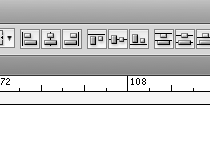
Now choose how you want the text and arrow aligned, and only the text will move. I want these horizontally centre aligned, so I click on the icon which shows the objects in that formation (second from left in the picture below).

Repeat the process, adding measurements and arrows as necessary to your diagram. 

Once you are happy with your finished diagram, be sure to lock all of the layers, and make sure that they are all set to be visible.

You can then choose to output your diagram in a wide range of formats. If you are working on an InDesign file for your pattern, the Illustrator file can be placed straight into it. Alternatively, you can choose from png/pdf/tif/jpeg/windows meta file and many other formats for your finished schematic.

 Please don't hesitate to leave a comment if you have any questions. I hope that this series has been useful.

Jen x

Drawing knitwear schematics in Illustrator: Part 2

Last week's post covered setting up your preferences and layers in Illustrator. In this post, I will cover drawing basic outline shapes, then I will do a post on finishing off the schematic, covering things like adding curves and alignment.

I like to draw schematics from an overhead flat shot of the garment. It means that the drawing will give a good impression of the shape of the piece, without having to spend ages drawing lines to scale from measurements. To get a good outline photo, make sure that you take the picture from directly overhead. The garment in the example below is the Droplet Bolero from A Stitch in Time vol 2.

If you can't find one of the palettes I refer to, look for it in the Window menu, and once it is open, you can drag and drop it onto the right hand side of the screen.

The image will be built from the bottom upwards, starting with the main outline of the piece (details like front openings or front neckline can be added later).

Unlock your bottom layer (in my case it is called Scan) by clicking on the padlock icon on the Layers palette. Click on the layer so that it is highlighted in blue, and therefore active. Then choose Place... from the File menu and select the image file for the photograph you wish to use.

Use the black arrow (the Selection Tool) to resize the photograph. Holding down shift while you do so will ensure that the proportions of the picture are retained. If you also hold down the alt key, then the photo will stay centred in the same place. Resize the photograph so that it sits comfortably on the artboard, with space around it for arrows and measurements.

Once you are happy with the size, then lock the Scan layer. Now you won't be able to move the photograph by mistake. If you need to adjust it later, you will simply need to unlock the layer again before making any changes.

Now unlock the layer where you plan to draw the outline shape of the garment. Click on the layer so that it is highlighted in blue. Make at this point that you have selected Snap to Grid in the View menu.

Then choose the Rectangle tool from the palette of options on the left of the screen. If you can't see a plain rectangle, the it might be hiding underneath one of the other shape tools (ellipse, polygon, star, rounded rectangle etc...). Just click and hold on the tool button to see the other options and select the rectangle tool.

Draw a rectangle over the body of your garment.

Then select the fill by making sure that the filled box is to the front on the toggle on the left-hand side of the screen.

And choose a fill colour from the Swatch palette (or use the Colour palette if you want more control of the exact shade). I usually fill the outline shape with white. This means that if your schematic is placed onto a coloured section of page, the outline shape will have a white background. If you have no fill (the red slash through a white box), then the schematic will have the same background colour as whatever it is placed over.

Then click on the stroke toggle, so that the outlined square comes to the front.

You can now choose the outline for your schematic. You select the colour you want from either the Swatch or Colour palettes as before. Then you also need to select how thick your outline line will be, and whether it will have sharp or rounded corners. You make these choices on the Stroke palette (the button with different types of horizontal line) on the right-hand side of the screen.

I use a 1 pt line thickness with rounded corners and ends. Play around with the options to see what effects you like best.

To make the outline into your desired shape, you will need to add some more anchor points (unless you want to draw a schematic of a rectangle of course). Anchor points are the handles at the corners of your shape, and by adding more, you can make a more complex shape. Make sure that your rectangle is selected and you can see the selection outline and small square handles at the corners (in the picture above, showing the rectangle, these are shown in blue). Choose the Add Anchor Point tool from the tools on the left of the screen. It may be hidden under the Anchor Point tool, in which case click and hold to choose from the other options available. The tool looks like a fountain pen with a small plus sign beside it.

Use this tool to click on the outline shape to add points whereever you will want to put a corner in your shape. Add more than you think you will need as you can always subtract them later.

Then use the white arrow (Direct Selection tool) to select and move the new anchor points. In doing so you can start to create the shape that you require.

Continue to add anchor points and then move them until you are ready to fine-tune the shape. You may find it easier at this point to temporarily remove the fill from your shape, so that you can see the photograph below more clearly.

Having created the rough overall shape of the piece, we can now tweak it to ensure that elements are lined up correctly with each other. I will cover adding curves to the shape in the next post.

To check that your neckline is in the centre of the piece (assuming that it should be!), add some guides to the workspace. Guides are lines that won't appear in the final schematic and are just used to line things up.

Ensure that your rulers are visible at the top and left of your workspace. You can make them visible from the View menu. By clicking and dragging from the ruler, you can add guide lines to line up with elements such as the side seams, shoulder line, back neck or underarm. The guides below are shown in turquoise, with the selected guide appearing blue. 

When you select two guides, you can then see how far apart they are by clicking on Transform at the top of the workspace. In the example below, the two guides are 21 pt apart.

To make sure that the back neck is correctly centred, I will need to add another guide to the picture, that is 21 pt to the left of the right side seam (as we are looking at the diagram) guide. Select the guide at the right side seam. Press Shift+Cmd+M (or Shift+Control+M if you are using a PC) to bring up the move dialogue box, and select a horizontal move of -21 pt. For horizontal movement: negative numbers move objects the the left, positive numbers move to the right. And for vertical movement negative numbers move objects up and positive numbers move objects down (that confused me for a while!). Rather than clicking OK (which would move the selected guide), you can click on Copy, which will add another guide at the selected distance.

With a new guide added, you can then move the anchor point for the back neck so that it lines up with the guide. This ensures that your back neck is centred.

You can also add guides so that you can add anchor points at the same height on each side of the piece. Since Snap to Grid has been selected, all of the guides and anchor points should automatically be snapping to points 1 pt apart. In this way they will line up neatly.

The horizontal guide above has been added to show the end of the edging at the bottom of the bolero. Anchor points are added to the outline, in line with the guide, at both sides of the shape.

Once you are happy with the shape and placement of the corners of the piece, you can get rid of all of the guides by selecting Guides from the View menu, and then choosing the Hide Guides option. You may need them later when adding arrows, so it's best not to clear them at this stage.

You should now have a basic outline shape, ready to add curves and details.

Drawing knitwear schematics in Illustrator: Part 1

One of the many jobs that I've done while working on A Stitch in Time 2 is drawing schematics for each of the garments. I thought it might be helpful to do a quick run-down on drawing these, as it seems to be a question that pops up from time to time on designer blogs and in the designer's group on Ravelry. I am using Adobe ® Creative Suite 5 ® (CS5) and my copy of Illustrator ® is version 15.0.0. I work on a MacBook Pro using OS X version 10.6.8. Some aspects may look a little different if you are using a PC or an older version of Illustrator, however the differences shouldn't be too significant.

This tutorial will be split into 3 posts. This post deals with getting your work space set up. The next post will be published next week, and will cover drawing your outline shapes in Illustrator. And the final post will cover adding curves, alignment and adding measurements.

The first job is to get your Preferences set up correctly. In the Illustrator menu at the top left of your screen you will see Preferences, hover over it and then choose General from the menu. Clicking on General gives you the following dialogue box of general preferences:

For drawing charts and schematics for knitting patterns, you won't need to use most of the possible settings on Illustrator. The first choice is your keyboard increment. This determines how far things move when you use the up, down, left and right arrows on your keyboard. For drawing schematics, I usually have this set to 1 pt. Choose your increment, but don't hit the OK button just yet.

Use the drop-down menu at the top of the dialogue box to select the Units screen. Then make sure that all units are set to Points (of course if you would rather work in inches or millimetres or pixels, then do - just make sure that you have your keyboard increment set to a sensible value for your units). Again, don't click OK just yet, simply select the Guides and Grid screen.

I generally work with a dot style of grid, and gridlines every 100 pt with 100 subdivisions between them. This means if I am snapping things to my grid, I have good control over where shapes are going. For drawing charts, then 10 subdivisions is probably plenty (each subdivision will be 10 pt apart rather than 1 pt that I use for schematics). Go wild with your colour choices, but it's probably worth choosing a colour that you won't be using in your schematic or charts.

Having set up your Preferences, you can open a document. When you choose New... you will be asked for a document name and the size of your Artboard (the area on which you will be drawing). I've named this Sample and chosen A4 size.

If you aren't seeing the red gridlines you may need to choose Show Grid from the View menu.

The next step is to set up some layers to work on. I imagine these like sheets of tracing paper. They determine what shows up in your final image and you can move layers up and down like sheets of tracing paper in a stack. Things at the bottom of the stack may be covered up by the layers above. But they are more useful than that, because you can lock one or more layers while you work on others. So once your outline is finished you can lock it so that you don't mistakenly move things round while you are drawing arrows or something else. In fact, you can even make layers invisible for a while too, if that's useful.

I have my layers palette set up at the bottom of the options on the right of my screen. It's the button that looks like layers! If you can't see it, then you can choose Layers from the Window menu at the top. This will give you a Layers dialogue box that you can drag and drop over to the right of the screen.

You will automatically have one layer already. To add more, simply click on the little button at the top right of the Layers palette. It looks like 4 horizontal lines with a small downward pointing triangle to the left of the lines (on any of the palettes, this will give you more options). This gives you the layers options menu.

From this menu, you can choose to rename the current layer by going into the Options for "Layer 1"... dialogue box. You can also add new layers.

This is the dialogue box you get when you choose Add new layer...

Choose a name for your layer and click on OK.

I would suggest that for drawing schematics, it is useful to set up layers as follows:

There are 8 different layers and I've named them to give an idea of what I would use that layer for. You can move layers around by dragging and dropping them in your desired order. The eye symbols on the left show that all of these layers will be visible. If you click on the eye that layer will no longer be visible (and won't print out either). Next to the eyes are the padlocks. These determine whether a layer is locked or not. When it's locked you can't do anything in that layer. You can't even paste an item into the layer. The coloured strips next to the padlocks show you what colour the things in that layer will show up as when they are selected (this is just the boxes and handles round items that you use to move, resize and manipulate them, not the actual things you are drawing).

In the picture above you will see that the Scan layer is highlighted in blue. If that layer was unlocked, it would be the active layer, or the layer I was drawing in. If you have multiple layers open, then the blue highlight shows which you will be editing or drawing in. You can change the active layer by simply clicking on the layer you wish to be active.

You are now ready to start drawing things, so do come back next week for basic steps in drawing outline schematics in Illustrator.

Pattern Checking Basics

Having eased you all in with some posts about things I have been making, I thought it was about time that I posted something geeky about knitting.

First up, what is the difference between pattern checking and technical editing?

I look at the two process as related, but different. Pattern checking is going through a pattern looking for errors, whereas for me, technical editing includes pattern checking, but also correcting any errors (with or without the help of the designer, as needed), re-writing sections for sense, and ensuring that the pattern is written in a consistent style.

We will come back to technical editing at a later date, but in the meantime, here are a few basic starting points for pattern checking. The remainder of this post covers the first step in checking a knitting pattern. It looks at the information section, and provides a checklist of sections that should be included at the start of any knitting pattern.

Size
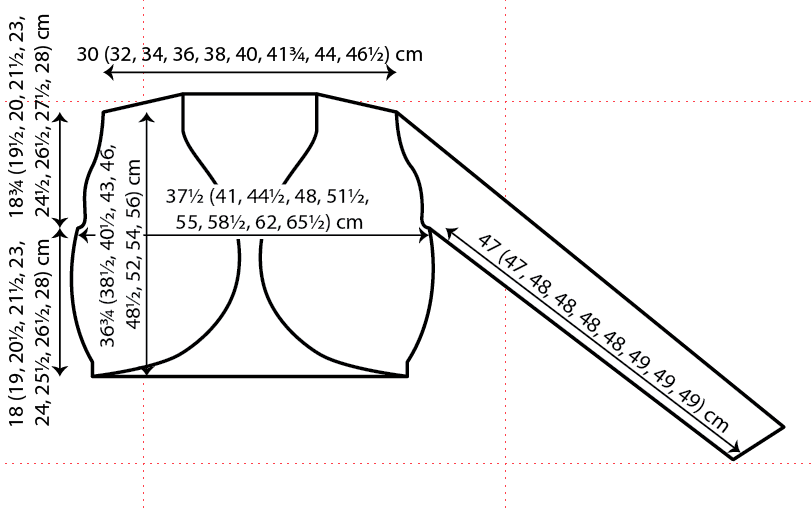
Check that the size information is appropriate, and that any conversion between metric and imperial has been correctly carried out. If a pattern is designed with negative or positive ease, ensure that the ease is consistent across all sizes. Standard sizing tables are available from websites like Yarn Standards and Ysolda Teague.

Check that any tabulated size information matches the blocking diagram (if one has been provided), and that any sections that should add up, do so. Check length to armhole, armhole depth and shoulder drop add together to make total length. Double check these lengths against the written pattern (if lengths are given in the written pattern).

Yarn
Check that full information has been provided about the yarn. This should include, Yarn company name, range name, fibre content, mass and yardage (or meterage), shade name and any shade code used by the company. If possible, check this information against the yarn company's shade cards or website. Use Ravelry or online stores only as a last resort, as these can be subject to users inputting information incorrectly. Check that the yarn requirements seem appropriate (and if you have the knitted sample available, weigh it to check that it is correct). Check that the yarn specified seems appropriate for the tension information. Yarn companies often make one line in a number of weights (Rowan Pure Wool, Fyberspates Scrumptious, Patons 100% Cotton to name but a few), and it is all too easy to specify the wrong weight. Look at the classic stocking stitch tension information and see if it looks sensible with the pattern tension information. E.g. DK yarns usually knit to around 22 sts and 30 rows, so a cable pattern in DK yarn might knit to 26 sts and 30 rows, as cables will pull inwards in comparison with stocking stitch. If a pattern had a tension of 28 sts and 36 rows to 10cm over stocking stitch, it is unlikely that it is knitted with DK yarn, so be sure to check again.

Tension
Check the tension of each stitch pattern against the sample garment. Ensure that these match the tensions given in the pattern, and that as far as possible, all stitch patterns have tension information. Being able to match a cable pattern tension doesn't guarantee that you will match a stocking stitch or colourwork tension in the same pattern, so to ensure success, each tension needs to match. The other reason for needing all tensions, is to work out the dimensions of each section of work.

Needles and Accessories 
Work through the pattern instructions making a note of all needles and equipment required, and ensure that it is all listed in the materials/accessories section. Check that size conversions are given for the needles or crochet hooks used, and that they are correct. Check that the needles seem sensible with the yarn weight used.

Abbreviations
Work through the pattern instructions and make a note of any abbreviations used. Check that there are explanations of any special abbreviations (ones not listed on the general abbreviations list). If the pattern is being published separately, then it is best to include all abbreviations for the avoidance of doubt.

Charts
If a chart is included, make sure that somewhere in the pattern, instructions are given on which way to read the rows of the chart. Ensure that the chart has a key, and that all symbols used on the chart are explained.

Phew! And that's only the very beginning of the process of checking a knitting pattern. I highly recommend checking any discrepancies or uncertainties with the pattern's designer. It may seem evident that something is incorrect, but sometimes, there is a good reason for a value or choice being unusual, and there is nothing worse than realising that you have introduced an error, when your job is to get rid of errors.